
You can apply a filter to any grid in Payroll. For this example, we will work in the Employee Maintenance Grid.
There are 2 different ways to filter a column in a grid. You can filter by Column Header or you can filter using the Advanced Filter.
First, we will talk about how to filter for a specific Employee using the Advanced Filter.
Click in the Name Advanced Filter Field, begin typing the Employee Name. Then, press Enter on your keyboard.
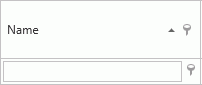
The Employee for which you filtered will then appear in the grid.

Any time you have a filter
applied in a grid, the filter icon in the Column Header is blue. 
Additionally, the filter details display at the bottom of the grid.

To clear the filter, click
 next to the filter details.
Now let's talk about how to filter for a specific Vendor using a Column Header.
Click the Filter Icon in the Vendor Column Header.

There are two things to note about how you can locate Criteria in the Filter Criteria Box:
1. If the list that displays in the Filter Criteria box is short and your selection is visible, you can simply Check the Check Box next to the Criteria you want to display in the grid.
2. If the list is long and you need to locate your selection, then you can "search" for Criteria by entering that text into the 'Enter text to filter...' Box.

And then check the Check Box next to the Vendor(s) you want to display in the grid.

Click the OK Button to apply the filter.
Now the Vendor(s) for which you filtered display in the grid.
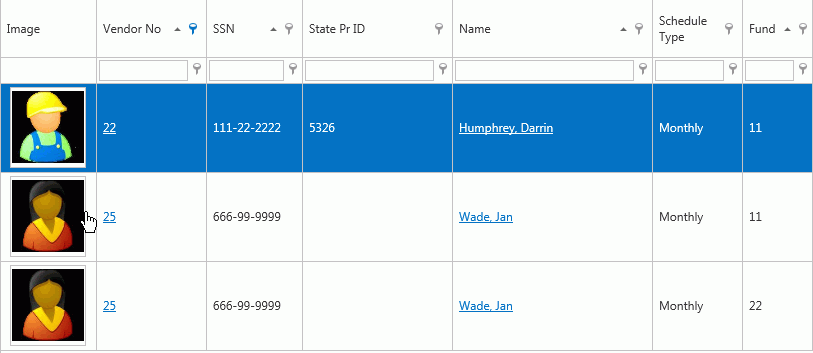
Now let's say you want to filter for Employee's with a Monthly Schedule Type within Fund 11.
Click the Schedule Type Filter Icon and check Monthly.
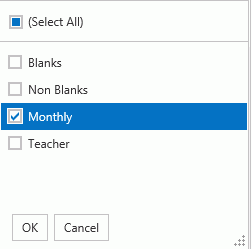
Click the OK Button.
Now scroll over to the Fund Column. Click the Fund Filter Icon and check 11.
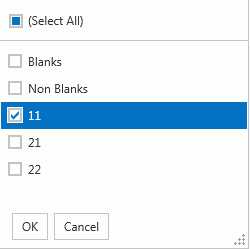
Click the OK Button.
Now the Employee's who are paid monthly with Fund 11 display in the grid.
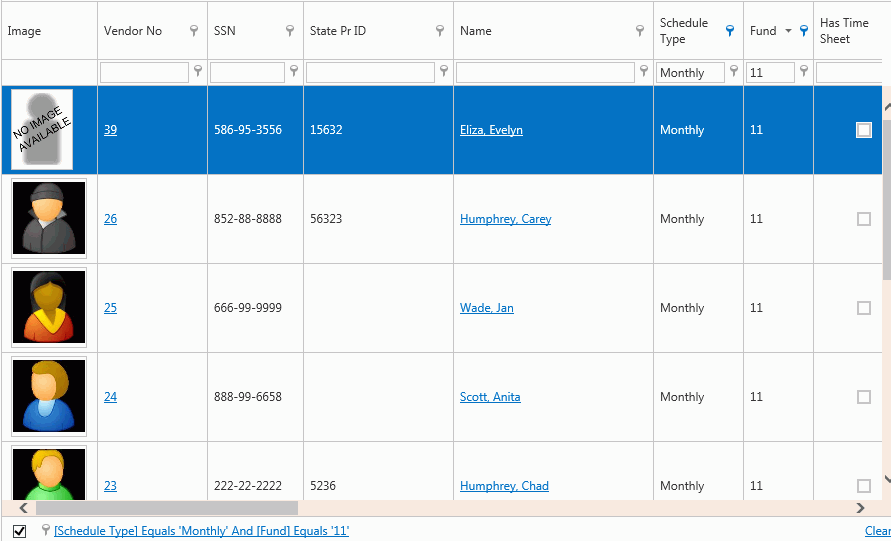
You can also build a filter instead of applying a filter to multiple columns. (Remember to clear the filter before applying another.)
Click  next to the Grid Header.
Then, click  .
.
The Filter Builder Form will appear:
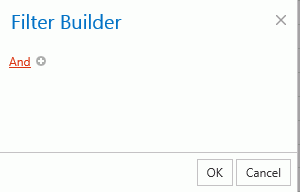
You can apply multiple Advanced Filters.
Click  .
.
Click VendorNo to enter one of the columns for which you want to filter.
Every column in the grid will display in the list. Select the one for which you want to filter. For this example, we will select Fund.
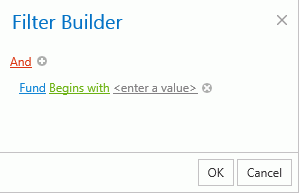
Click Begins with in order to apply a condition for the filter. Select the condition for which you want to filter.
For this example, we want the Fund to equal 11. Therefore, we will select Equals.

Now click Enter a Value to enter a value for the condition you selected.
Enter the value for which you want to filter. For this example, we will enter 11.

Click the to add another filter and
then enter the conditions as in the previous steps.

Now the grid is filtered for Employee's paid from Fund 11 with the Admin Process Group.