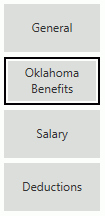
Click the Oklahoma Benefits Tab on the left side of the screen.
TR Participant: Check the Check Box if this Employee participates in Teacher Retirement.
Note: If the employee does not participate in Teacher Retirement Fringe, the System will automatically withhold the TR.
Default TR Fringe: Use the Drop Down List Box to enter a Default Teacher Retirement Fringe. The list is populated according to what was setup in the Options Menu/Setup/Oklahoma Statutory Benefits Tab/Oklahoma TR Fringe. If you set a Default TR Fringe here, the system will display that Fringe in the Fringe Field in the Salary Line above.
Note: If a Default TR Fringe is not entered for an Employee, the system will automatically deduct Teacher Retirement from the Employee's Salary.
TR Fringe Max: Use the Drop Down List Box to enter the Teacher Retirement Fringe Maximum Code if this Employee has a Teacher Retirement Fringe Maximum. The list is populated according to what was setup in the Options Menu/Setup/Oklahoma Statutory Benefits Tab/Oklahoma TR Fringe Max.
TR State Credit Years Exp: Enter the Number of Years' Experience for this Employee.
TR State Credit Amount: Leave this field blank unless you need to override the Teacher Retirement State Credit Amount for this Employee.
FBA Type: Use the Drop Down List Box to enter the Flex Benefit Allowance Type for which this Employee qualifies.
CERT-Certified
CERTINLIEU-Certified in Lieu of
SUPP-Support
SUPPINLIEU-Support in Lieu of
FBA Amount: Leave this field blank unless you need to override the Flex Benefit Allowance Amount for this Employee.
FBA Begin Pay Period: Use the Drop Down List Box to enter the Begin Pay Period for the Flex Benefit Allowance.
FBA End Pay Period: Use the Drop Down List Box to enter the End Pay Period for the Flex Benefit Allowance.
Note: The Begin and End Pay Period format is dependent upon the Schedule Type and Pay Periods allowed for the Schedule Type entered for this Employee.
Function: Use the Drop Down List Box or type to enter the FBA Function Code for this Employee. If you type to enter the Function Code, the system will tab to the next field.
Program: Use the Drop Down List Box or type to enter the FBA Program Code for this Employee. If you type to enter the Program Code, the system will tab to the next field.
Subject: Use the Drop Down List Box or type to enter the FBA Subject Code for this Employee. If you type to enter the Subject Code, the system will tab to the next field.
Job Class: Use the Drop Down List Box or type to enter the FBA Job Class Code for this Employee. If you type to enter the Job Class Code, the system will tab to the next field.
Unit: Use the Drop Down List Box or type to enter the FBA Unit Code for this Employee. If you type to enter the Unit Code, the system will tab to the next field.
Click
 .
.
Now, click the Salary Tab. To view documentation on the Salary Tab, click here.